Start here / 5 minute guide
Sign in and choose an Environment
Connect the CLI to your Elyxis account, complete browser login, and select where to work.
Last verified 2026-10-20Start from the CLI
Launch the CLI, then enter this command at the Elyxis > prompt:
/login
Keep the terminal open. The CLI opens your browser and waits for you to finish signing in.
Complete sign-in in your browser
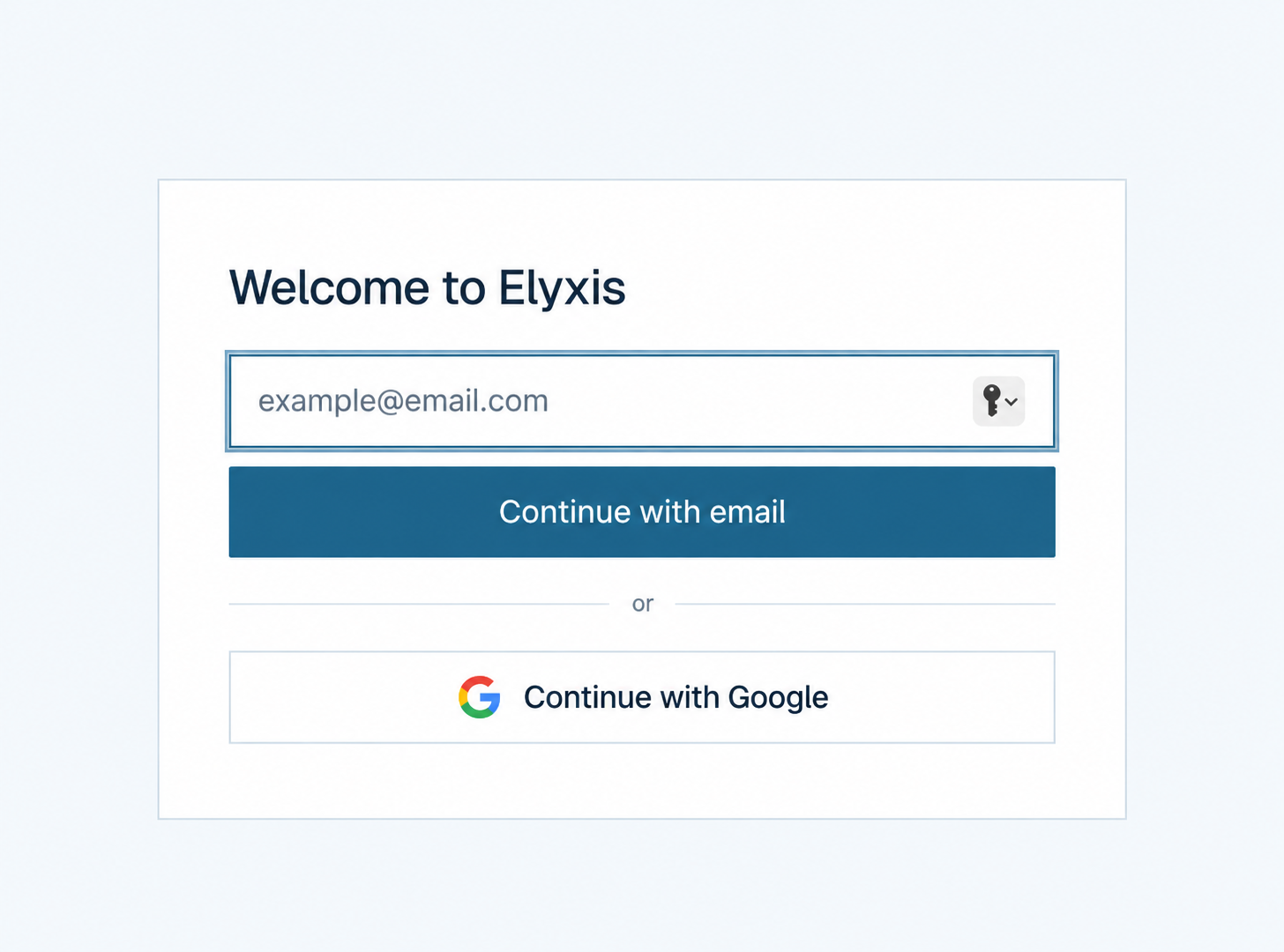
Use the email address invited to your Elyxis workspace. Choose email sign-in or Google if it is available for your workspace. For email sign-in, open the link in the email on the same computer as the CLI. Choose the workspace if prompted.
Review the app permissions
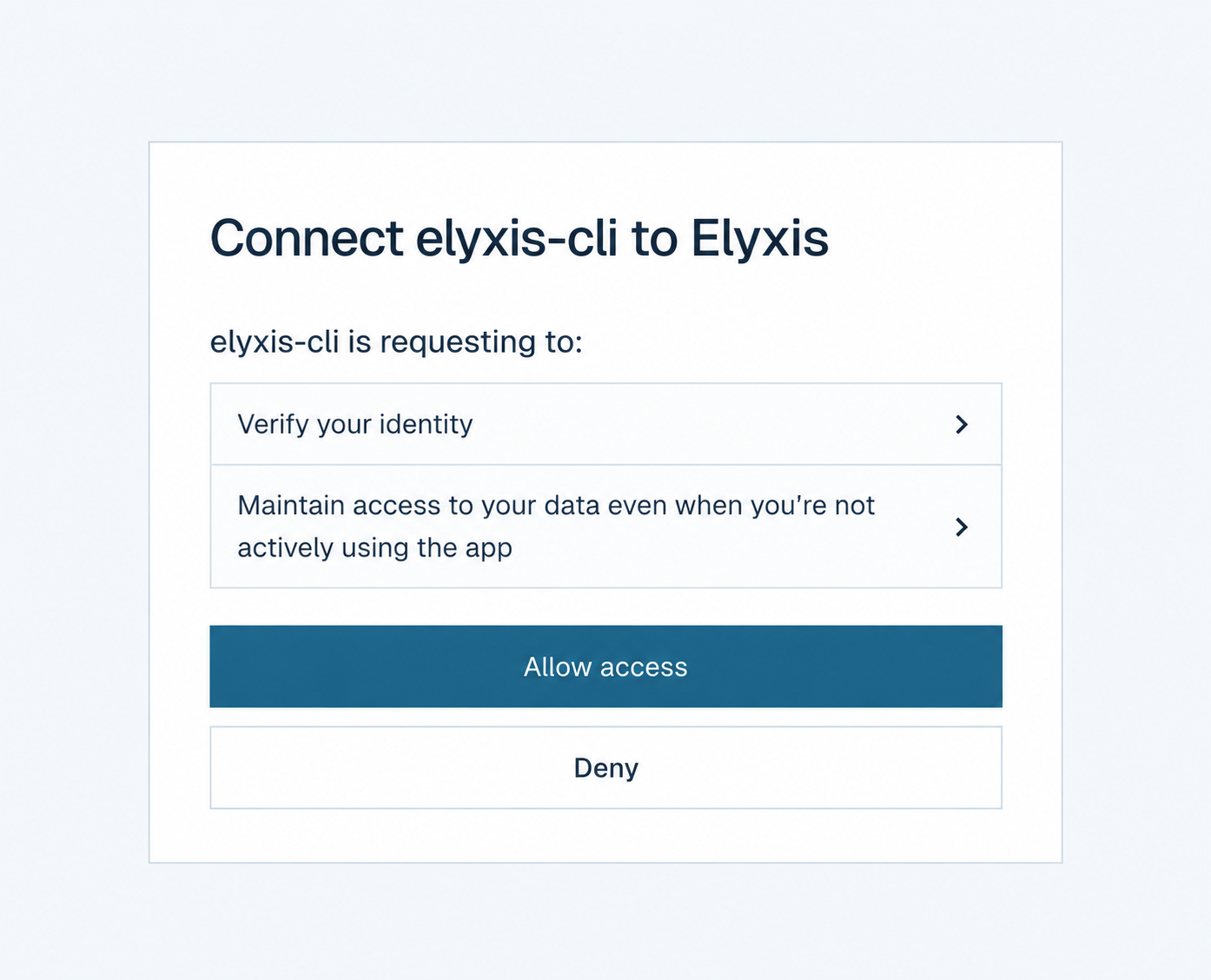
If an app-permissions page appears, check the signed-in account and that the requesting app is the Elyxis CLI. Review the requested permissions, then choose Allow access to continue.
Return to the terminal
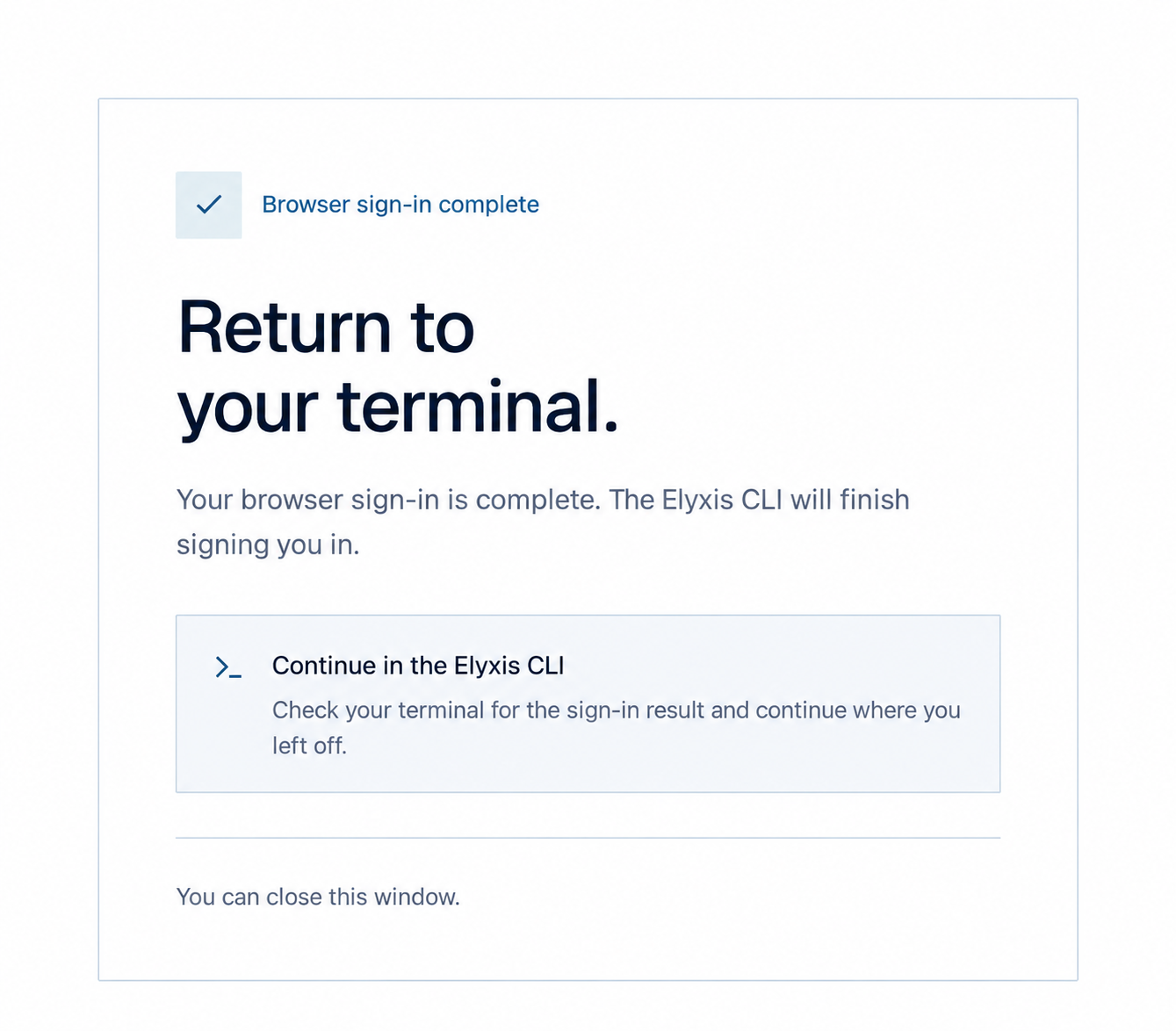
When the browser shows Browser sign-in complete and Return to your terminal, you can close that window. Check the terminal for the final sign-in result.
The terminal confirms:
Logged in to Elyxis.
Signing in to the website separately does not finish a CLI login. Start with /login so the browser can return the result to the waiting CLI.
Choose an Environment
After a successful login, the CLI loads the Environments you can access:
- One Environment: it is selected automatically.
- Several Environments: choose one with the arrow keys and Enter, or the numbered choices shown by a basic terminal.
- No Environments: the CLI asks you to contact your administrator and signs out. Ask for access to your beta workspace, then sign in again.
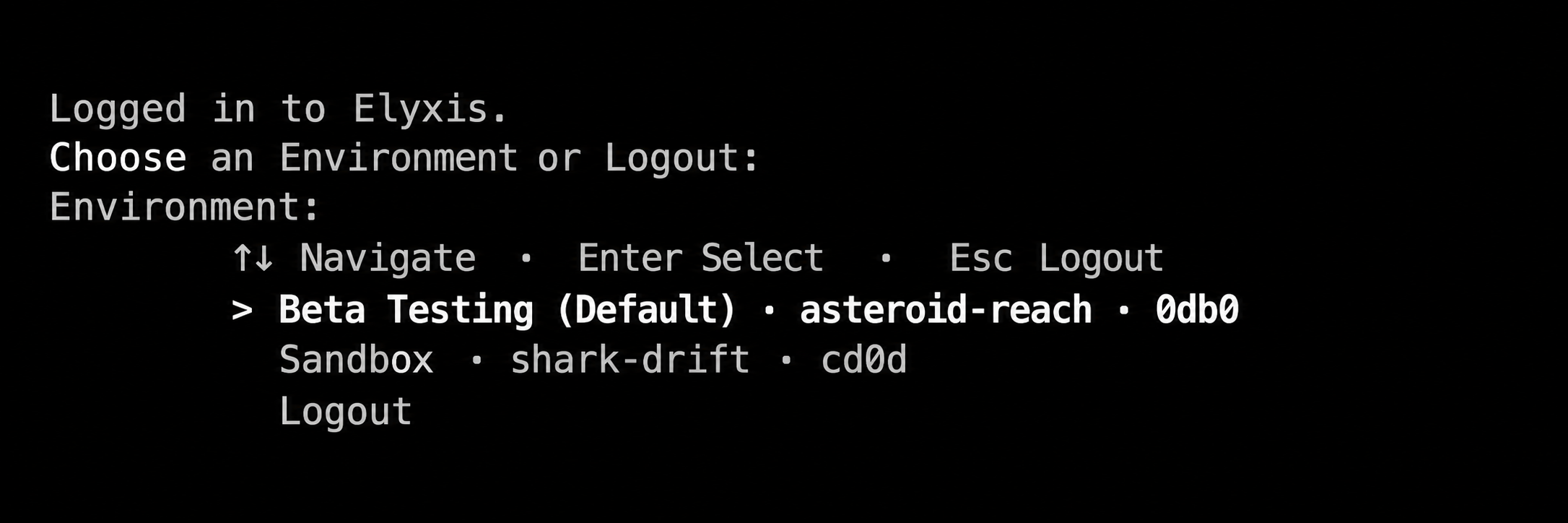
An Environment determines the resources and configuration for your work. Choose Beta Testing for your first session: its sample data and connections are already configured. Sandbox is an empty Environment for setting up your own work. If only one Environment is accessible, the CLI selects it automatically.
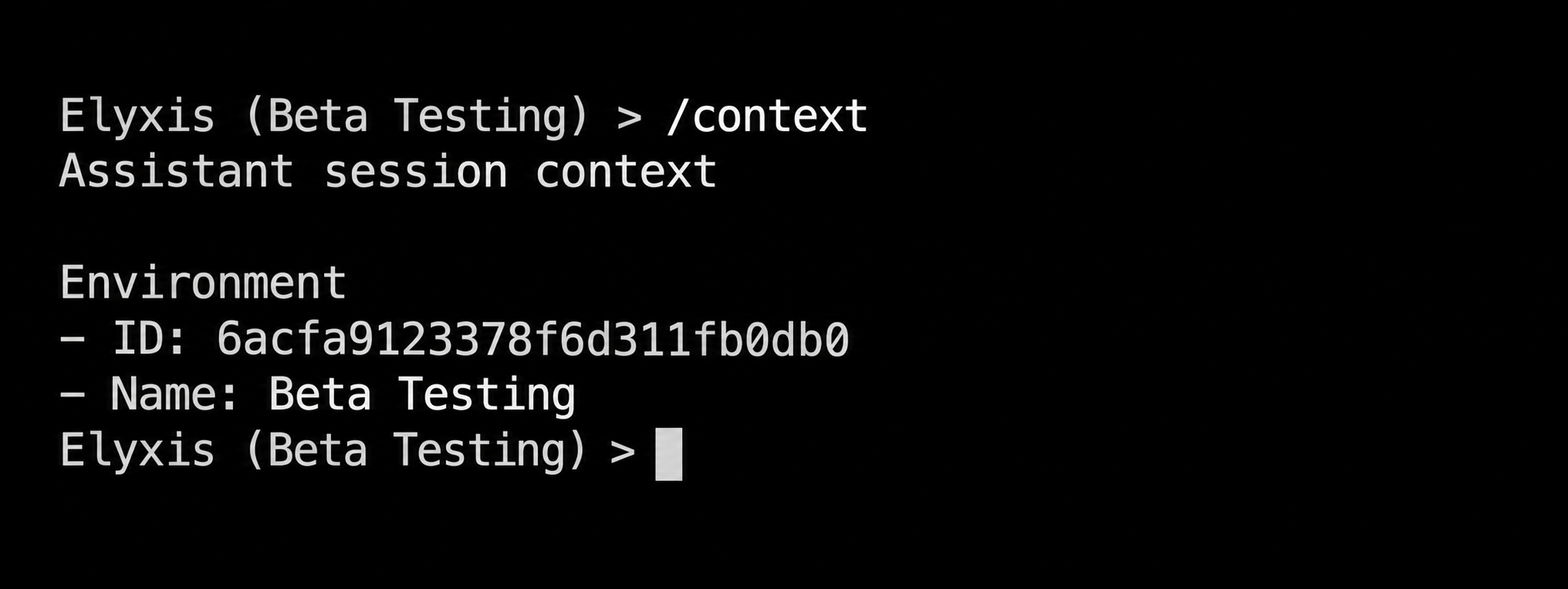
Check both your account and selection. For the prepared scenarios, /context should show Beta Testing:
/whoami
/context
When the browser does not open
Run:
/login --no-browser
Copy the printed URL into a browser on the same computer. This option skips opening the browser automatically; it still needs the local callback to reach the running CLI. Opening the URL on a phone or a different computer will not complete the usual local sign-in flow.
If login times out, run /login again and use the new link. If the CLI reports that its callback address is already in use, close another waiting Elyxis login and retry.
Change accounts or sign in again
/login --force
This starts another browser login and replaces saved credentials on success. A successful new login also starts a fresh Assistant session, so the previous conversation and resource selections are cleared. Select your Environment again.
If /login says Already logged in, use /whoami to check the account, or /login --force to authenticate again. A permission denial can also mean your account needs an administrator's approval; repeated login cannot grant missing permissions.
Sign out
/logout
This removes locally saved Elyxis credentials and resets the local Assistant session. Closing the terminal with /exit does not sign you out.
Credentials are saved by default in .elyxis/auth.json under your home folder. Keep that file private; do not attach it to a support request. This local login file is separate from your Environment's Keystores.
Explore the prepared beta scenarios