Start here / 14 minute tutorial
Create your first capability
Follow a complete Assistant journey from a requested outcome to an executable, verified result.
Last verified 2026-10-20What you will do
You will ask Elyxis for a capability that accepts support-ticket text, classifies urgency, and returns structured JSON. Elyxis may reuse an existing capability or compose one from available building blocks.
This tutorial is for building in Sandbox, which starts empty. Complete the configuration prerequisites below before creating the capability. For a first result with no database or model setup, start with the prepared Beta Testing scenarios.
The screenshots are AI-edited illustrative captures adapted from a beta session to show this Sandbox workflow, not a fresh execution. Available plugins and configuration vary by Environment. The Assistant will tell you when a required Setting, model configuration, secret reference, or another prerequisite is missing.
Check the prerequisites
Start the CLI, sign in, and inspect the current resource context:
/whoami
/context
Complete installation and sign-in first. Select Sandbox and check that /context shows it before continuing. You need permission to inspect, create, and run the resources involved.
When your request does not name an Environment, Elyxis uses the one selected in your session context. You do not need to repeat it in every request.
The Environment also needs suitable Plugins, Settings, and any required secret references. Ask your beta administrator if these are not ready.
Check the existing Apps
Ask what is already available in your selected Environment:
list all apps
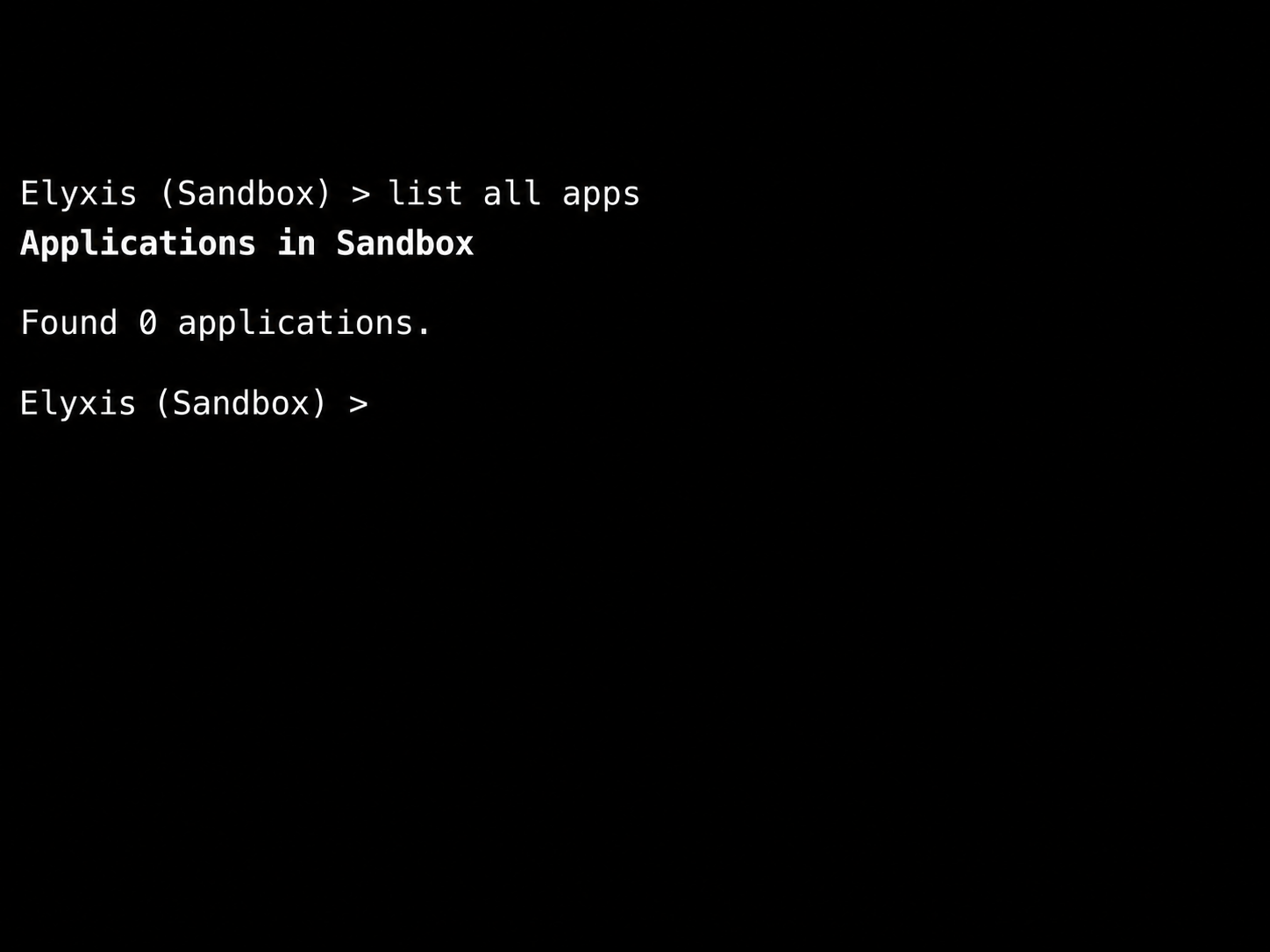
Your Sandbox starts with no Apps; any Apps you create will appear here. Onboarding Readiness Review is prepared in Beta Testing, not Sandbox. Your request uses the Environment already selected in your session.
Ask for the outcome
At the Elyxis > prompt, enter:
Create a reusable capability that accepts support-ticket text, classifies its urgency as low, medium, high, or critical, and returns JSON with the urgency and a short reason.
Notice that the request specifies the input, output, and useful constraint. It does not force Elyxis to use a particular model or tool.
Answer clarification questions
If a required task detail is missing, the CLI presents the Assistant's questions together. Answer each one directly. For example, it might ask how your team defines critical urgency. If the request is already clear enough, this step may be skipped.
For example, the Assistant might ask: “What should count as critical urgency for your support tickets?” You could answer: “Use critical when a production issue prevents all customers from completing their work.”
A clarification supplies information. It does not approve a mutation.
Review the confirmation
Before a change executes, the CLI may show a yes/no confirmation. Read the proposed action and affected resource carefully.
- Type
yoryesto approve the displayed action. - Press Enter, type
n, or choose to exit to reject it. - Reject and issue a revised request when the proposed action is not what you intended.
Approval continues the retained proposed action; it is not permission for the Assistant to invent a different mutation.
Read the outcome
The final response should distinguish among:
- a capability that was found and is executable now;
- a capability that was created but still requires build, activation, or configuration;
- a completed invocation with a returned result; and
- an incomplete or failed outcome with a safe next step.
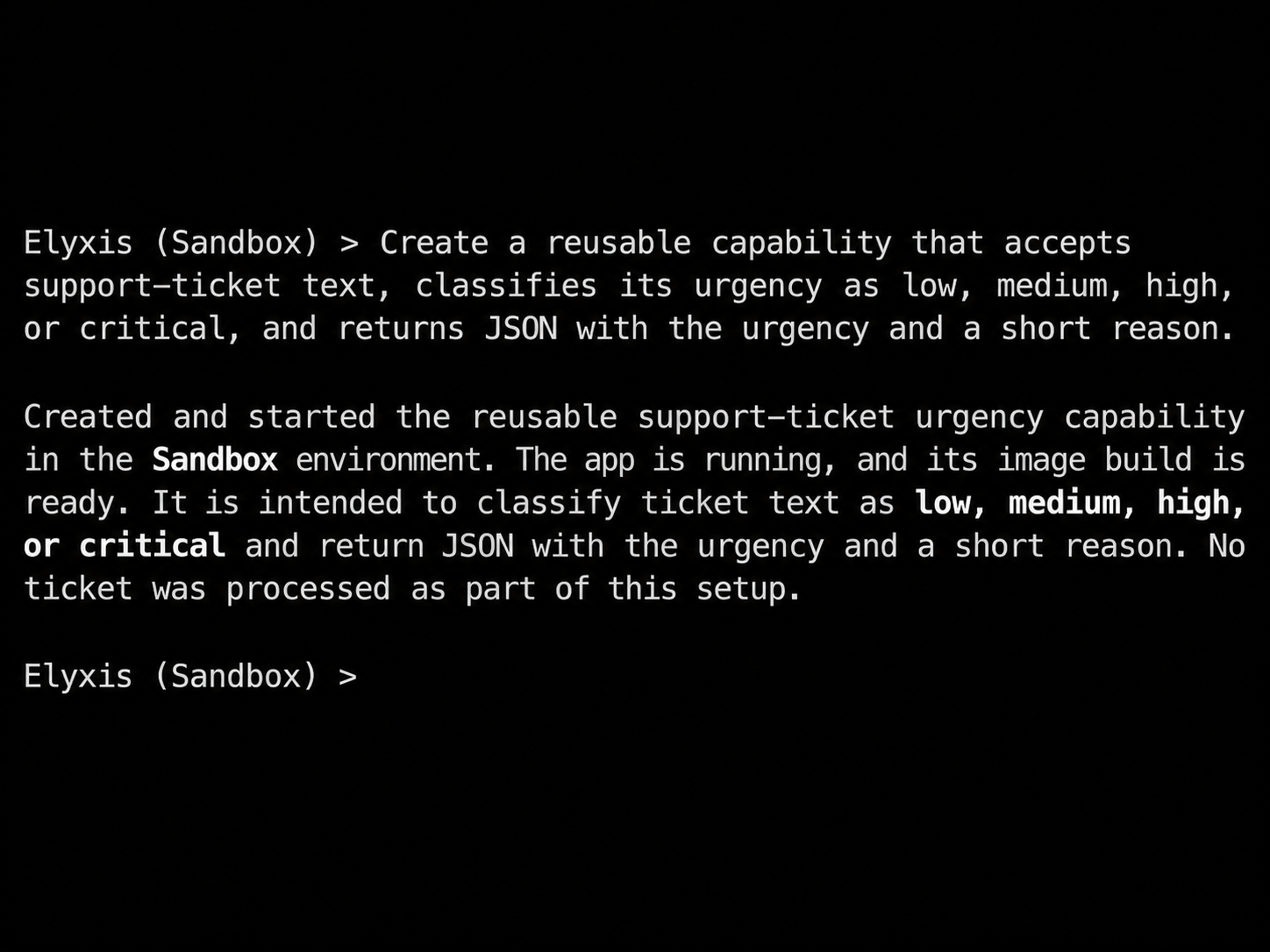
In this illustrated response, Elyxis reports that it created and started the capability. It also says No ticket was processed as part of this setup. The next step is to invoke it with ticket text.
Do not treat “planned,” “submitted,” or “created” as equivalent to “ran successfully.” Look for an explicit execution result.
Inspect the new App
Ask list all apps again to inspect the Apps now available in Sandbox. After creation, look for Ticket Urgency Classification. The excerpt below shows the new classifier’s description and resource identifiers.
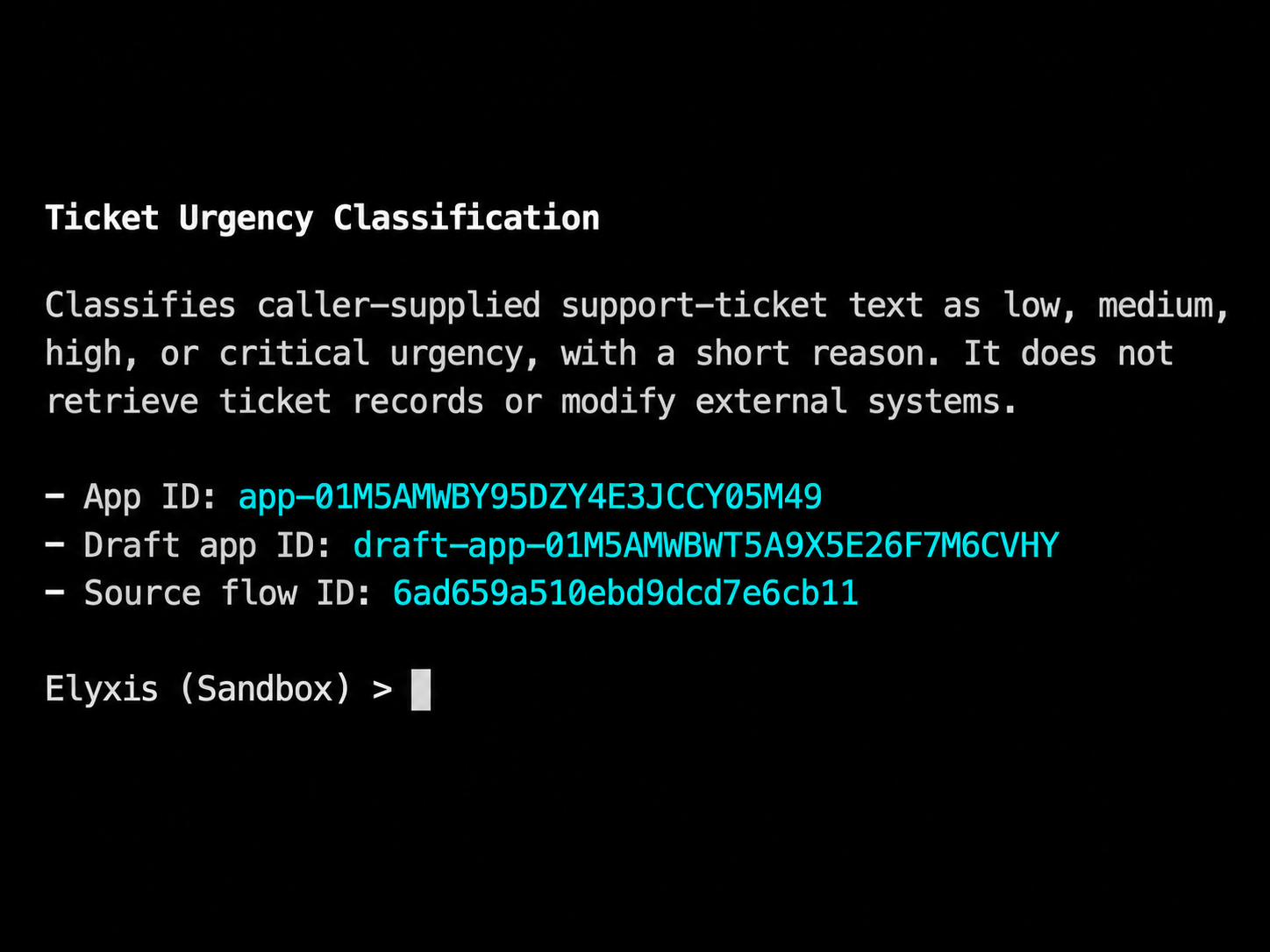
Check that the App’s description matches your intent. This one classifies text you provide; it does not retrieve tickets or change an external system.
Classify a support ticket
Ask the Assistant to classify an example ticket:
Can you classify this support ticket:
Subject: Charged twice after upgrading my subscription

Hi Support,

I upgraded my subscription from the Basic plan to the Pro plan yesterday.
This morning I noticed that my credit card was charged twice. One charge
looks like my normal monthly payment, and the second charge appeared
shortly after I upgraded.

I'm not sure if this is expected or if I was billed twice by mistake.
Could you please review my account and let me know if one of these
charges will be refunded?
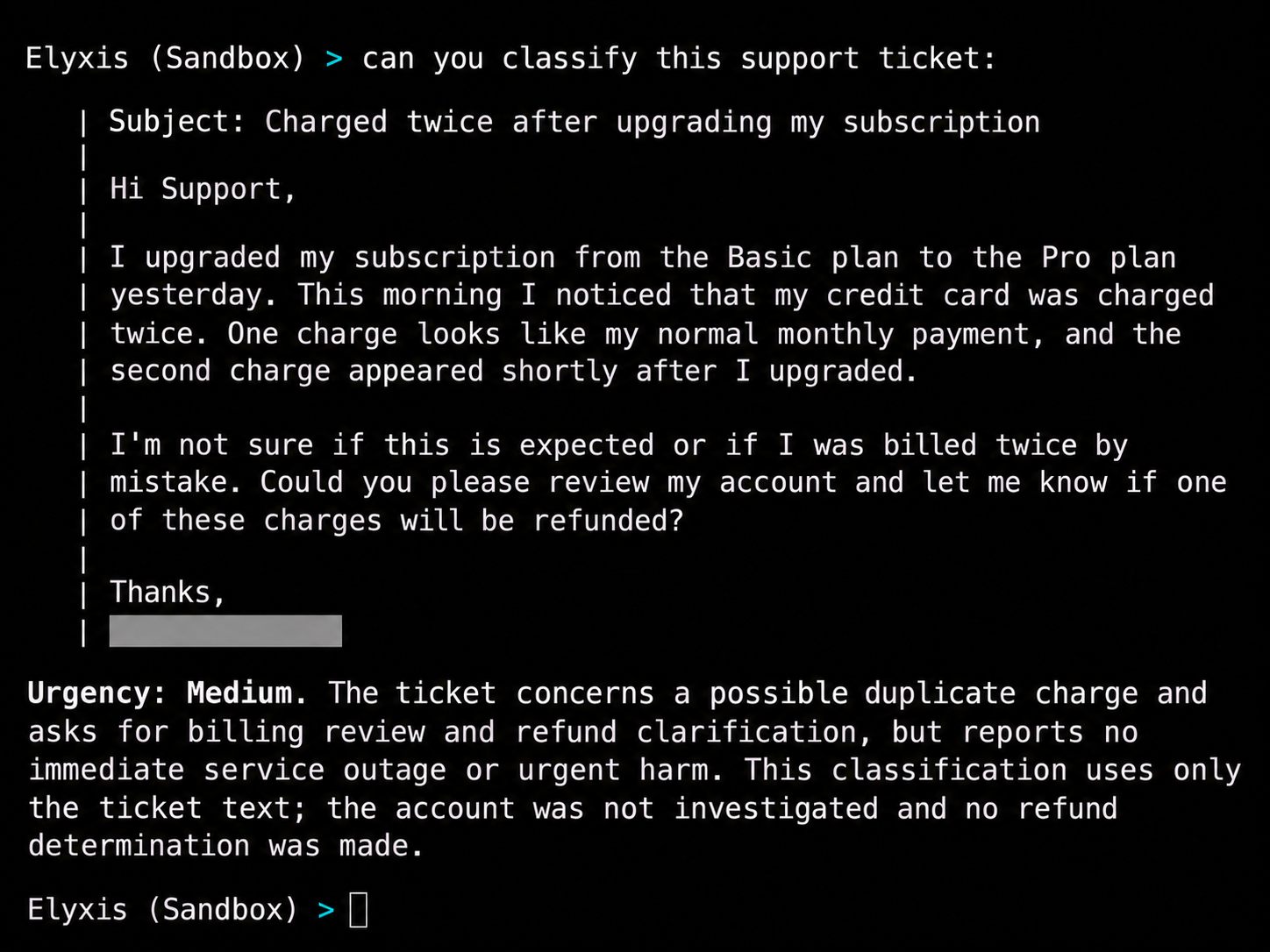
The Assistant reports Urgency: Medium: the ticket asks for billing review, but describes no immediate service outage or urgent harm. The reply explicitly says the account was not investigated and no refund determination was made.
The creation request specifies JSON output; this screenshot shows the Assistant’s readable summary. The task here is urgency classification. An account investigation or refund would require a separate capability.
Use the capability again
In the same Environment, ask for another classification without repeating the creation request:
Can you classify this support ticket:
I upgraded my subscription last Tuesday.

The upgrade looked successful, but two different amounts appeared on my statement.

I don't remember my subscriber ID.

Can you verify whether I was accidentally charged twice?
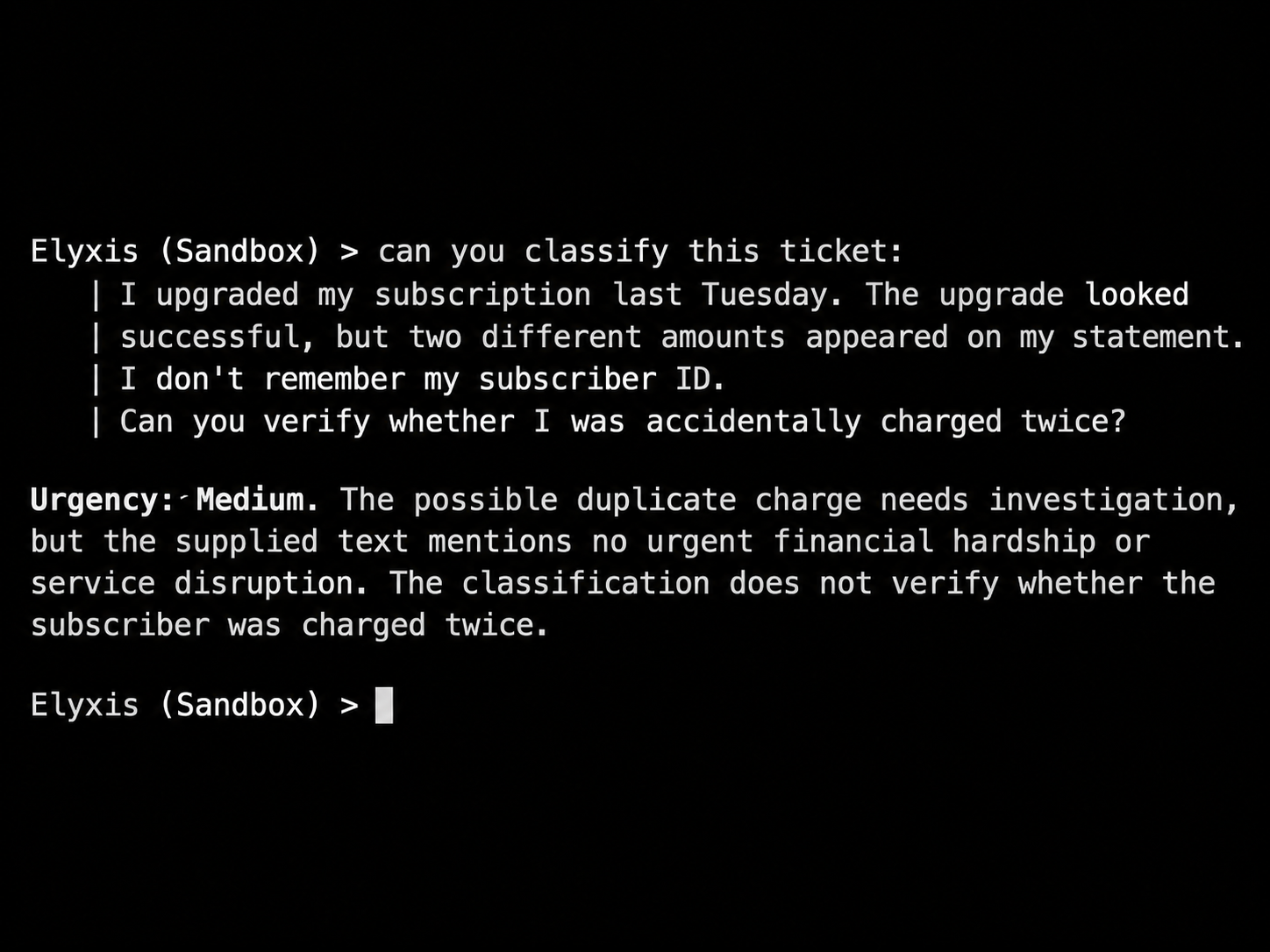
The reply again classifies urgency. It does not establish whether the customer was actually charged twice.
Use /context to inspect selected resources. Use /new before starting unrelated work.
Learn to make better requests